Help and FAQ
Last updated 16 October 2026
Everything you need to know about using A1 Office on the web, iPhone, iPad and Android. Pick a topic, or search the page with Ctrl+F or ⌘F. If your question isn't here, email [email protected].
- Getting started
- Presentation AI
- Resume AI, AI Docs and document generators
- Chat with PDF, Summarize, Translate and AI chat
- AI Sheets
- PDF tools
- Docs, Sheets and Slides editors
- Account and sign-in
- AI credits and quality levels
- Plans, billing and subscriptions
- Troubleshooting and support
Getting started
What A1 Office is, where it runs, and what you can do before signing in.
What is A1 Office?
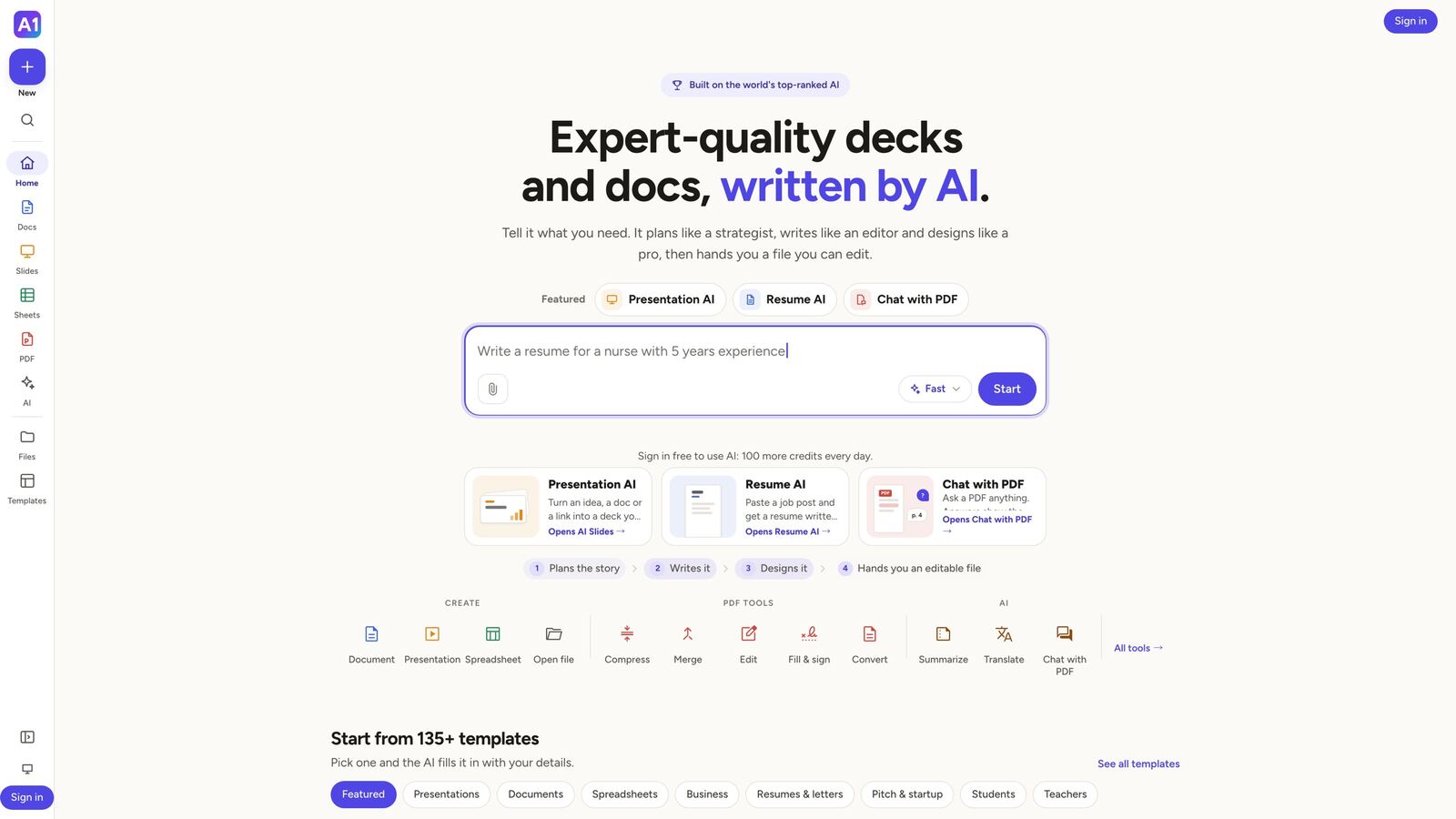
A1 Office is one app for making and editing office files with AI. Tell it what you need and it writes a presentation, a resume or any document for you, as a real file you can edit. It also answers questions about your PDFs, writes spreadsheets with working formulas, and includes 23 free PDF tools and full Docs, Sheets and Slides editors.
It runs on the web and as an app for iPhone, iPad and Android. Sign in with the same account everywhere and your files follow you.
Where can I use it?
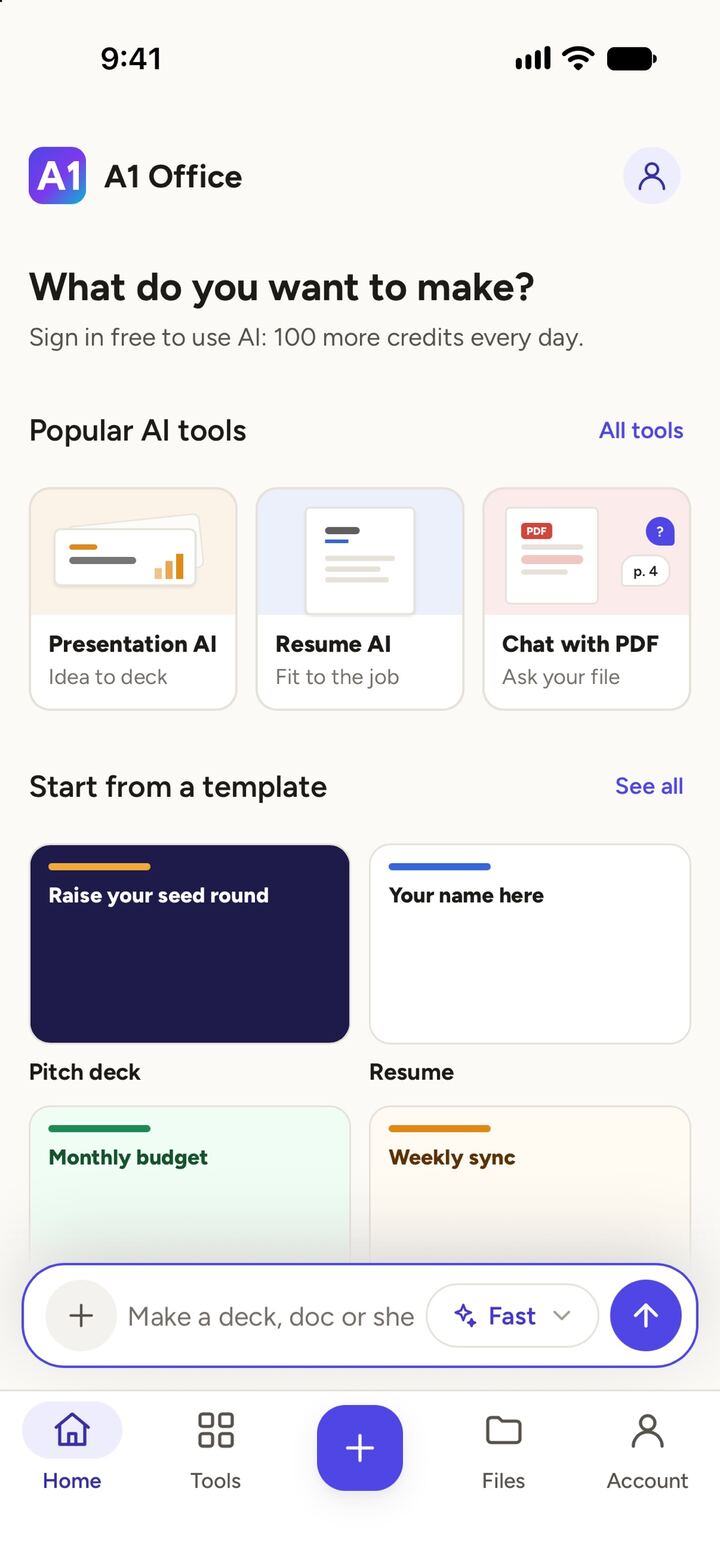
On any modern browser at A1 Office, and in the A1 Office apps on the App Store (iPhone and iPad) and Google Play. The web version adapts to your screen: on a phone or tablet browser it uses the same layout as the apps, with a tab bar along the bottom.
The apps and the website are the same product. A file you start on your laptop opens on your phone, and the other way round, as long as you are signed in to the same account.
Do I need an account?
Not for most things. The PDF tools, the Docs, Sheets and Slides editors, the templates and every download work without signing in, and your work is kept on your device.
AI features ask you to sign in. Signing in is free and gives you free AI credits every day, keeps your files in your account, and lets you open them on any device. Sign in with Google, or with Apple in the iPhone and iPad app.
Is A1 Office free?
Yes. The PDF tools and the editors are free with no limits on file size or page count. AI features are free with a signed-in account up to a daily credit allowance, and paid plans add a large monthly allowance plus the Quality and Best AI levels. See the Credits and Plans sections below.
Which languages does it come in?
A1 Office is available in English, Japanese and Korean. On the web, use the language picker in the footer, or open /ja or /ko. In the apps, pick a language in Account; otherwise the app follows your device's language.
The AI answers in the language of the page you are on, and you can ask it for any other language in your request. Translate document turns a whole file into another language.
What happens to my files?
Files you open in the PDF tools are processed inside your browser and never leave your device. There is nothing to upload and nothing for us to keep.
When you use an AI feature, the text you give it (your request, the text of a source file, your photos for a deck) is sent to our AI provider to produce the answer, and is not used to train models. Documents, sheets and decks you make while signed in are saved to your account so you can open them on other devices; signed out, they stay on your device only.
The privacy policy explains exactly what is processed and kept, and how to delete it.
Presentation AI
Turning an idea, a document or your photos into an editable slide deck.
How do I make a presentation with AI?
On Home, pick the Presentation AI chip (or tap the Presentation AI tile in the app), describe the deck you want, and press Start. You can also open Slides on the web and type your request there.
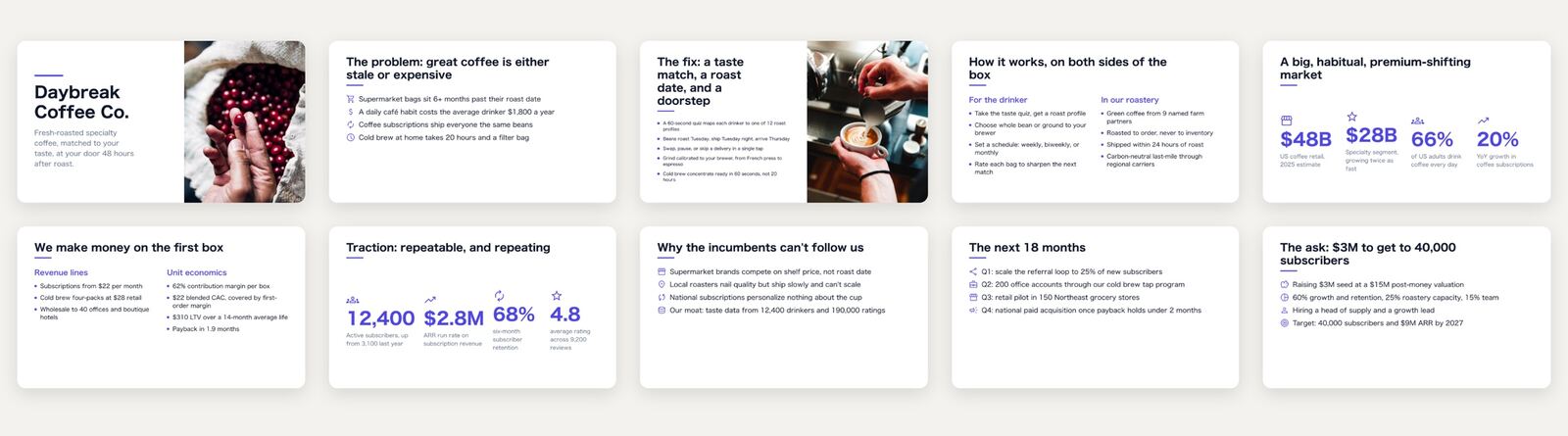
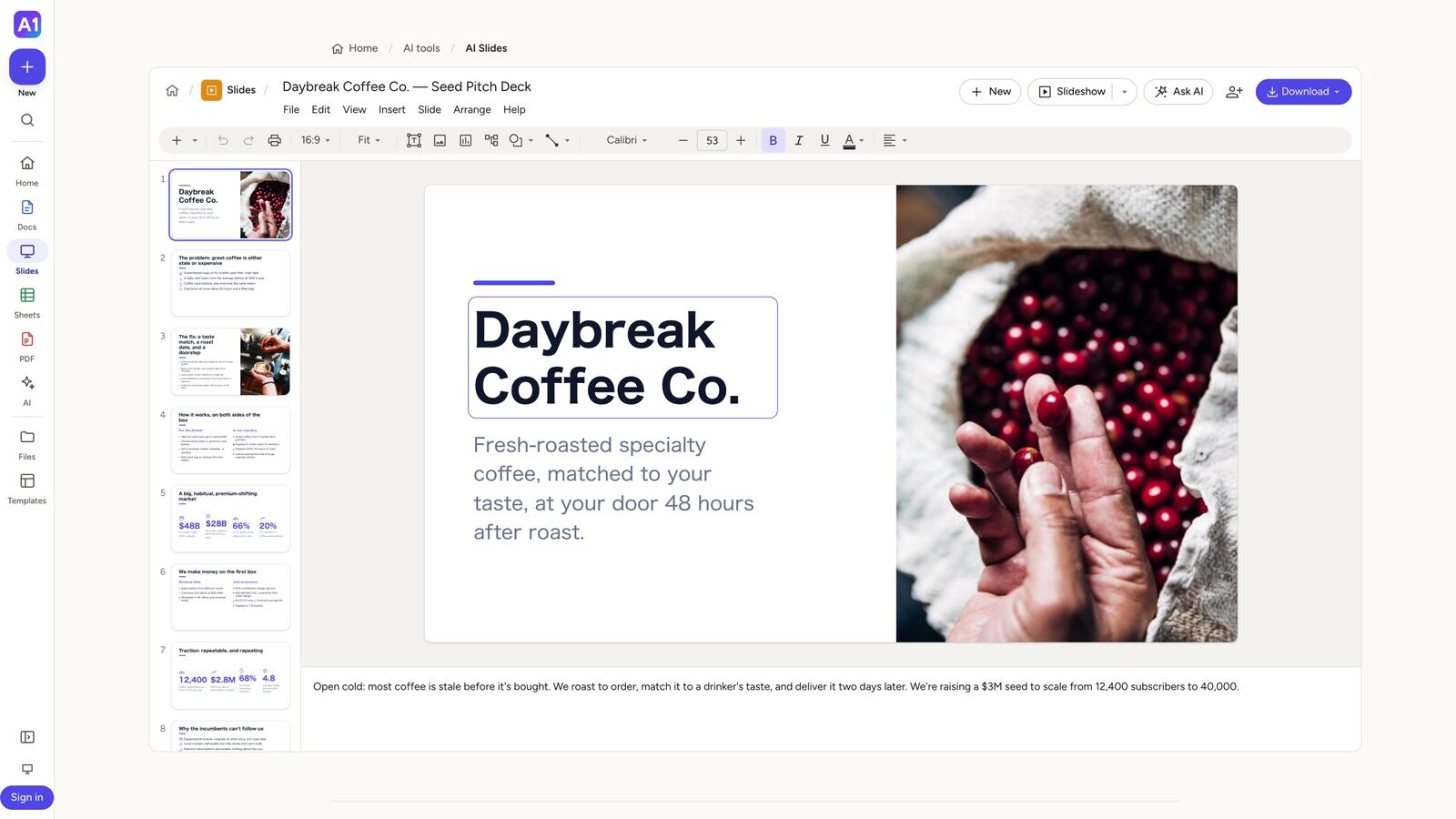
The deck is written and designed slide by slide in a live preview, with stock photos matched to the words, then it opens in the Slides editor where you can change anything. Download it as PowerPoint (.pptx) or PDF when you are happy.
Can it build a deck from my document or photos?
Yes. Attach a source file with the paper-clip button: PDF, Word (.docx), PowerPoint (.pptx), Excel (.xlsx), CSV, text or Markdown. The deck is built from what the file says; add a line of instructions if you want a particular angle or length. Very long files are cut at about 60,000 characters.
You can also add up to 20 of your own photos (JPEG, PNG, WebP or HEIC). The AI looks at each one and places it on the slide where it fits.
Scanned PDFs with no text layer cannot be used as a source here. Run the file through OCR PDF first, then attach the searchable copy.
What do Professional, Creative, slide size, Guide mode and Expert do?
Professional makes a clean business deck in the slide size you pick: 16:9, 4:3, 1:1, 3:4, 9:16 or 21:9. Creative makes a bolder, photo-led deck in 16:9.
Guide mode shows an editable outline first. Set the goal, audience and length (short, standard or long), reorder, add or remove slides, then build exactly that outline. Your choice of Guide mode is remembered.
The Expert chip picks the point of view the deck is written from. Auto chooses one for your topic; you can pick another, or None for a neutral tone.
If your request matches one of our templates, the maker offers to use it ("Using …"). Press Change to pick another or No template to design from scratch.
How do I change the deck after it is made?
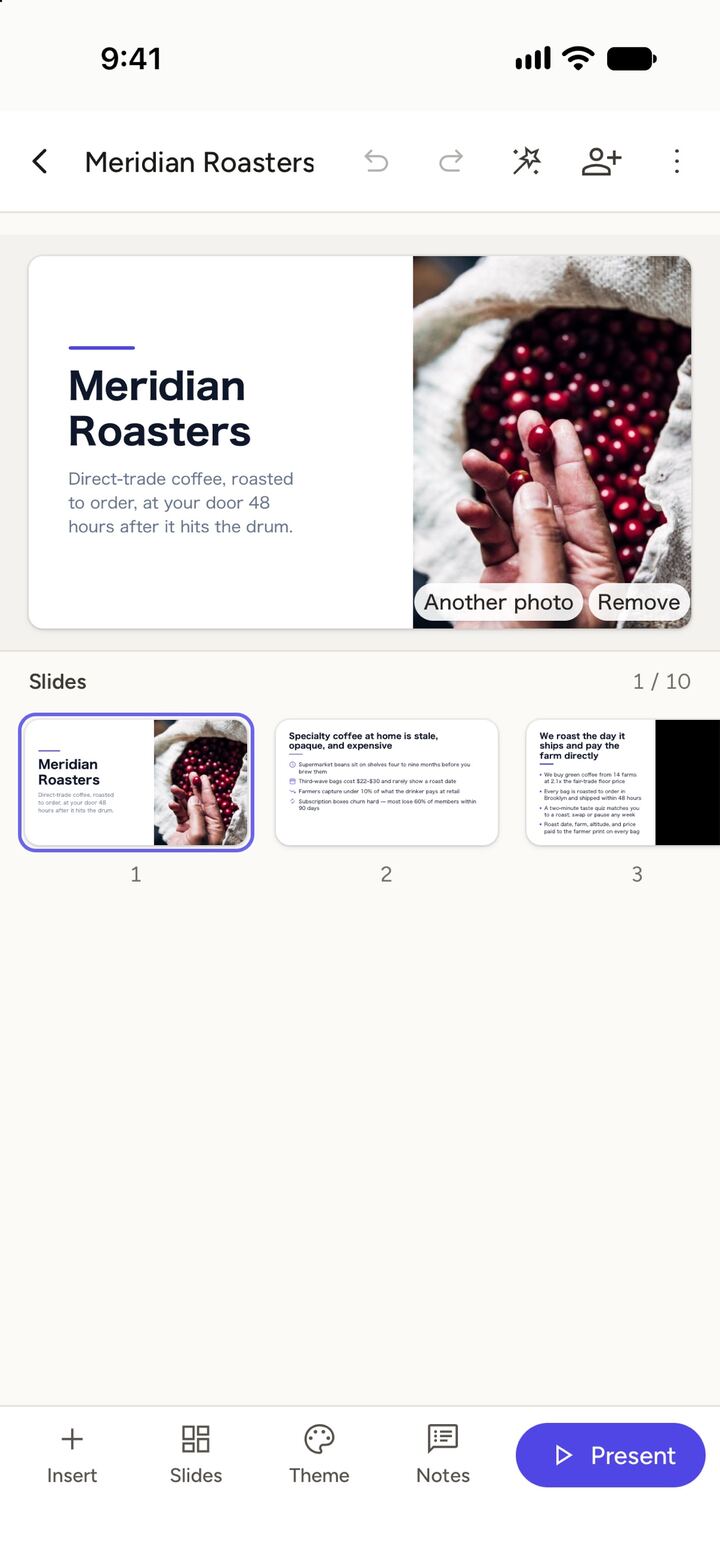
Edit it by hand like any presentation: text, layouts, themes, backgrounds, shapes, icons, images, charts and diagrams. Editing by hand never uses credits.
Or open Ask AI in the editor. With This slide selected, one-tap edits fix the layout, polish, enrich, simplify or redesign the current slide. With Whole deck selected, type a request such as "make it more formal", "translate to Spanish" or "add photos to every slide". Each AI edit is one Undo step, and you can press Stop part way through.
Another photo swaps a slide's stock photo for a different one.
What are AI images?
By default a deck uses free stock photos that are checked against the text of each slide. In the Creative style you can switch AI images on instead, and the AI paints a picture for each photo slide. Each picture uses credits (about half a free day's allowance), so free accounts can try a few, and paid plans make as many as their credits allow. Any picture that cannot be made falls back to a stock photo.
How do I download or present a deck?
Press Download at the top right and choose PowerPoint (.pptx) or PDF. The .pptx keeps the text, layout, size and photos, and opens in PowerPoint, Keynote and Google Slides. In the apps, the share sheet opens so you can save the file or send it on.
Slideshow plays the deck full screen on the web, and presenter view shows your notes and the next slide.
What can it not do yet?
It does not read web links: paste the text instead. You cannot upload your own template yet ("Make your own template" says coming soon). Decks are made from your request, a file or photos, in one pass; there is no longer multi-step research mode.
Resume AI, AI Docs and document generators
Writing a resume, a cover letter, a proposal or any document, and editing it with AI.
How does Resume AI work?
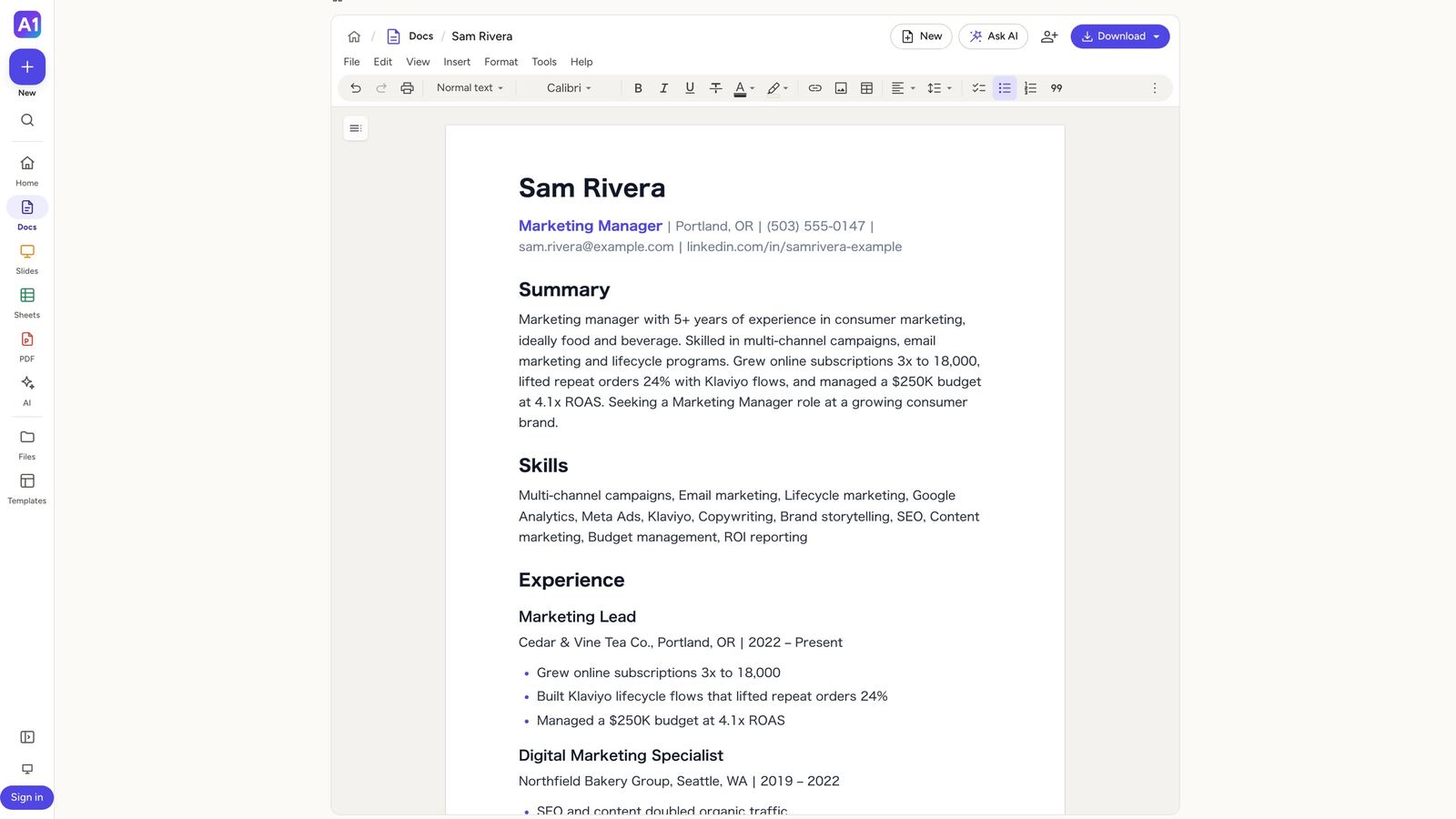
Open Resume AI (or the Resume AI chip on Home). Paste the job post and a few lines about your experience, or attach your old resume as a PDF or Word file, pick a look, and press Build my resume. The ATS look is recommended because applicant tracking systems read it reliably.
The resume opens in the Docs editor, written to the job: a summary, the skills the post asks for, and measurable bullets. Change anything by hand or with Ask AI, then download it as Word (.docx) or PDF.
A scanned resume (a photo or scan with no text) cannot be read; type the details instead, or run it through JPG to Word first.
What other documents can it write?
There are dedicated pages for a cover letter, a business plan, a proposal, a lesson plan, a SWOT analysis, a leave application and a pitch deck. Each asks a few questions, writes the document and opens it in the editor.
For anything else, use AI Docs: open Docs on the web (or the AI document writer in the apps), describe what you need, attach a source file if you have one, and the document is written straight into the editor. Task chips (study notes, market research, proposal and more) set the format for you.
Every document and slide template also has a "Fill it in for me" button that fills the template with your details.
How do I edit a document with AI?
Select some text and an AI bubble appears: rewrite, shorten, elaborate, make it formal or casual, or fix spelling and grammar. Replace swaps the selection; Insert below keeps the original and adds the new version under it.
With nothing selected, open Ask AI (⌘J or Ctrl+J, or the Ask AI button) to work on the whole document: fix spelling, make it more formal, add a summary, make it shorter, or turn the key points into a table. The editor is read-only while it runs; Stop and Undo work as usual.
On a phone the same tools are under Write with AI in the keyboard bar.
Chat with PDF, Summarize, Translate and AI chat
Asking questions about a file, summarizing it, translating it, or just chatting.
How do I ask questions about a PDF?
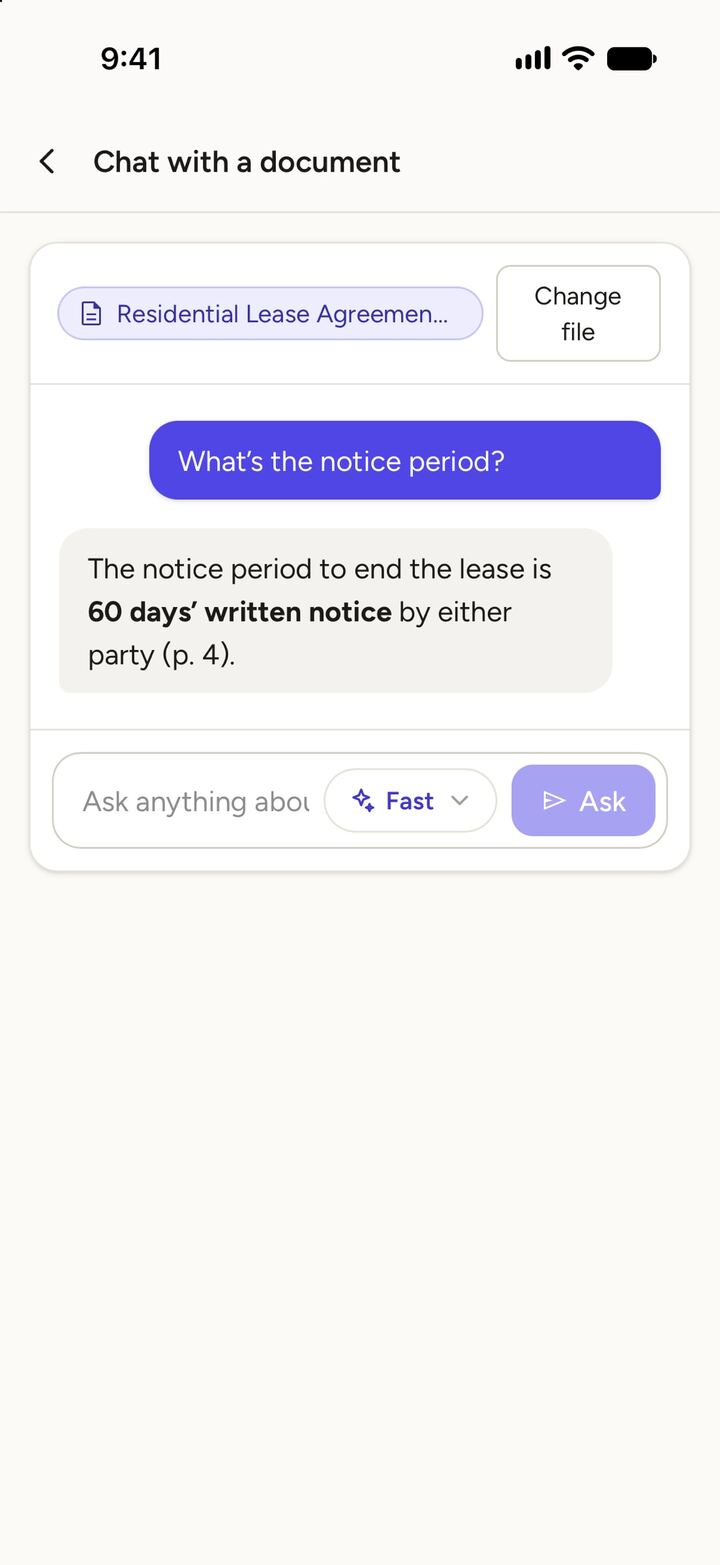
Open Chat with PDF, add your file and type a question. The answer streams in with page references like "(p. 4)" so you can check the source. Ask as many follow-up questions as you like about the same file.
It also takes Word, PowerPoint, Excel, CSV, text and Markdown files. Scanned PDFs are offered OCR first, which runs in your browser. Very long files are cut at about 60,000 characters, so questions about the end of a 300-page book may miss.
Conversations are not saved; when you leave the page, the chat is gone.
How do I summarize or translate a document?
Summarize PDF writes a short, standard or detailed summary of a file in the language you pick, with an optional focus (for example "the financial figures"). Long files are summarized in parts first. The result is a document you can edit and download as Word or PDF.
Translate document translates a PDF or Word file section by section into any language, keeping the structure, and gives you an editable document to download.
What is the AI chat?
Type anything into the Home box and, if it is not a request for a specific tool, it opens a general chat where the AI answers questions, brainstorms and drafts text. If you ask for a deck, a document or a sheet, or attach a file, you are taken to the right tool instead. Rate answers with the thumbs so we can improve them.
AI Sheets
Building a spreadsheet with working formulas from a sentence or your data.
How do I build a spreadsheet with AI?
Open Sheets and describe what you need, for example "a monthly budget with income, expenses and savings". The AI writes the workbook, checks every formula and fixes any that fail, then opens it in the Sheets editor with real formulas, not pasted numbers.
Build from my data takes your own .xlsx or .csv (up to 5,000 rows) and builds the workbook around it; chips then offer a chart or a summary. Afterwards, Ask AI takes change requests such as "add a chart of expenses" and shows the formula check.
Ask AI is available on sheets the AI built, during that session. Sheets you open from a file or start blank are edited by hand for now.
PDF tools
The 23 free tools for converting, compressing, editing and signing PDFs.
Which PDF tools are there?
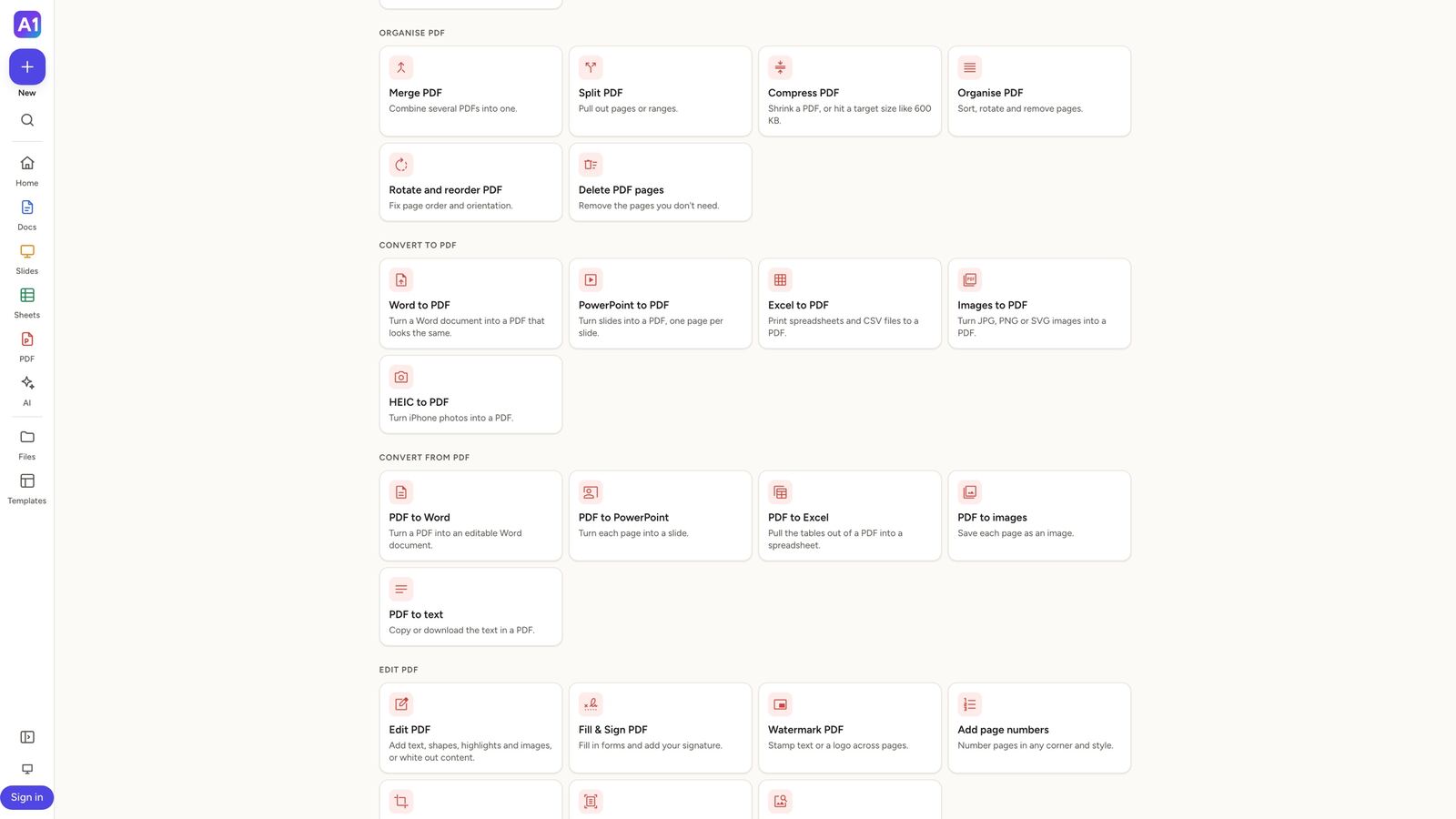
Organise: merge, split, compress, organise (sort, rotate and remove pages), rotate, delete pages. Convert to PDF: Word, PowerPoint, Excel, JPG and PNG, HEIC. Convert from PDF: to Word, to PowerPoint, to Excel, to JPG, to text. Edit: edit PDF, fill and sign, watermark, add page numbers, crop, OCR, and JPG to Word.
Find them all on the Tools page. Each tool has a sample file so you can try it without one of your own.
Are the PDF tools really free? Is there a file size limit?
Yes, they are free, with no account, no watermark and no limit on file size or page count. Everything happens inside your browser, so your files are never uploaded. Very large files simply take longer on slower devices.
How do I make a PDF smaller?
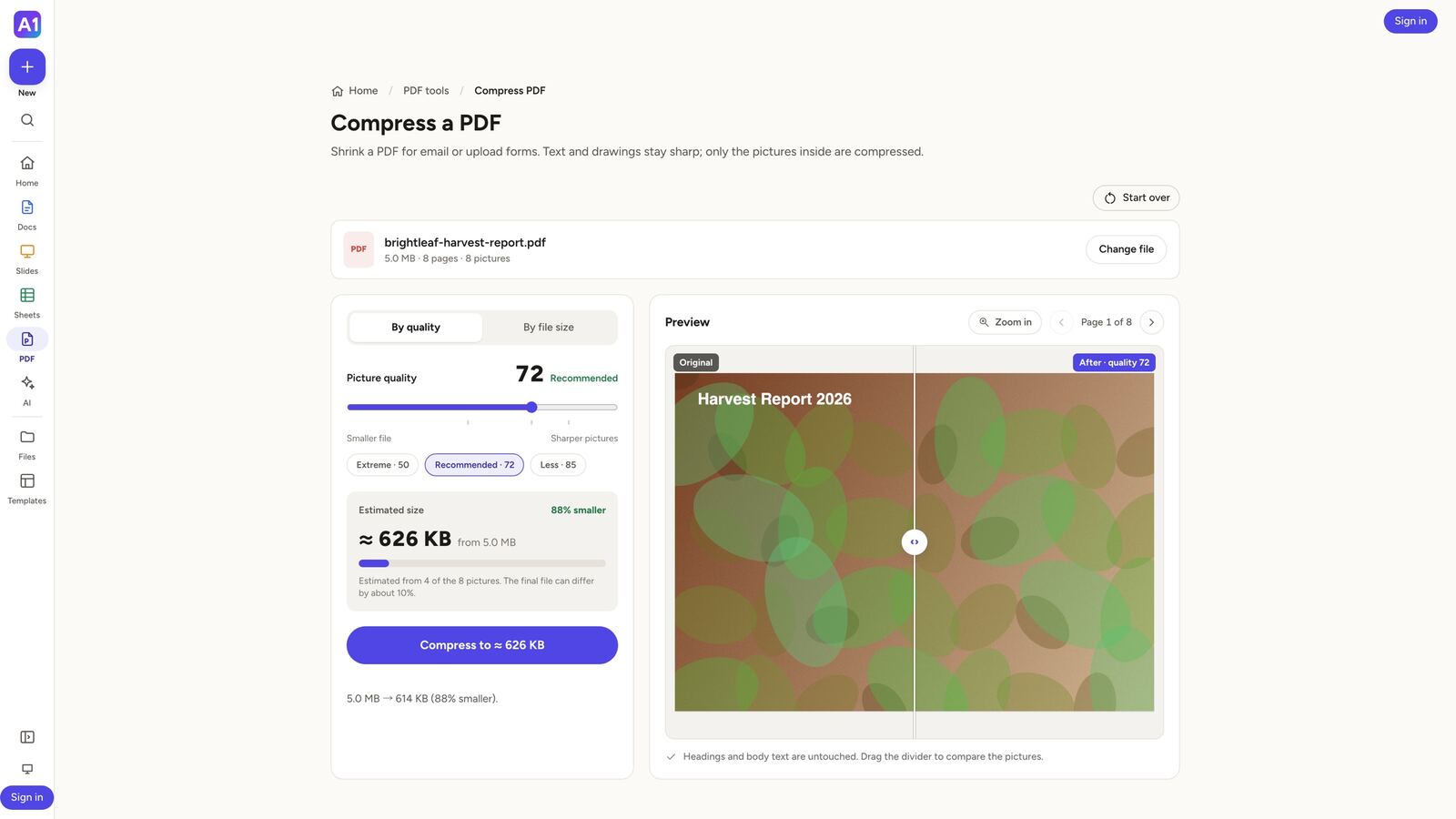
Open Compress PDF and add your file. By quality, move the slider (72 is recommended) and watch the estimated size update; by file size, type a target or pick 200 KB, 500 KB or 1 MB. Drag the divider in the preview to compare before and after. Only the pictures inside are compressed; text and drawings stay sharp.
If a target cannot be reached, the tool tells you the smallest size it can manage. A PDF with no pictures to shrink is reported as already compact.
How do I sign a PDF or fill in a form?
Open Fill & Sign. Type into form fields directly. To sign, draw your signature, type it, or upload a picture of it (the white background is removed), then move over the page and click or tap where it should land. Add ticks and dates the same way, and move, resize or delete any mark. Tick Flatten to make the result uneditable before you download.
My PDF is a scan. How do I make it searchable or editable?
OCR PDF recognises the text in English, Japanese or Korean and gives you a searchable PDF that looks the same. PDF to Word, PDF to Excel and PDF to text run OCR automatically on scanned pages. The language data downloads the first time you use a language, so the first run needs a connection.
Why does a tool say my PDF is password protected?
The tools cannot open encrypted PDFs. Remove the password in the app that made the PDF (or print it to a new PDF) and try again. There is no tool to add or remove PDF passwords yet.
Why does my converted file look slightly different?
Word to PDF and PowerPoint to PDF draw the file in your browser. A font the document uses but your device does not have is replaced by the closest match, and the tool warns you which. Old .doc and .ppt files are not supported; save them as .docx or .pptx first. Excel to PDF takes .xlsx and .csv, not .ods.
Where do downloads go in the apps?
In the iPhone, iPad and Android apps a share sheet opens instead of a download. Choose Save to Files (or Save) to keep the file on your device, or send it straight to another app. Cancelling the sheet quietly discards the file; run the tool again if you change your mind.
Docs, Sheets and Slides editors
Opening, editing, saving and sharing files.
Which files can I open and save?
Docs opens Word (.docx), PDF, text and Markdown files and saves Word and PDF. Sheets opens Excel (.xlsx) and CSV and saves both. Slides opens and saves PowerPoint (.pptx) and exports PDF.
Use File, Open (⌘O or Ctrl+O) inside an editor, Open file on Home, or start blank from the New button. Formatting such as headings, lists, tables, images, formulas, merged cells, charts and speaker notes comes through. If a spreadsheet has more than 5,000 rows or 200 columns, or uses features the editor does not support, a notice lists what was left out.
Is my work saved automatically?
Yes. Signed in, every change is saved to your account about a second and a half after you stop typing ("Saved" shows beside the title) and the file appears in Files. Signed out, work is kept on this device in the browser; it survives closing the tab, but not clearing the browser's data, so download a copy of anything important.
When you sign in with work already open, you are asked once whether to save it to your account. Files over 1 MB cannot be saved to the account; download them instead.
Can I go back to an earlier version?
Signed in, open Version history from the File menu (or the More menu on a phone). Preview any version, restore it, or give an important version a name so it is easy to find later.
How do I share a file?
Press Share in the editor and choose "Anyone with the link". People who open the link see a read-only copy, can download it if you allow downloads, and can make their own editable copy by signing in. Switch back to "Only me" to turn the link off; anyone opening it afterwards sees that it is gone.
Sharing needs an account, because the link points to the copy in your account.
Can I start on my laptop and finish on my phone?
Yes, when you are signed in on both. Home shows "Pick up where you left off" with the file you last edited. If the same file is open on two devices, the other device reloads your changes within about half a minute; if both have unsaved changes, you are asked which to keep. Continue on another device in the editor shows a QR code (on a laptop) or a link to send to yourself.
Which spreadsheet functions work?
The everyday ones: SUM, AVERAGE, COUNT, IF, AVERAGEIF, SUMIF, VLOOKUP, XLOOKUP, XMATCH, INDEX, MATCH, IFERROR, PMT, TEXT, DATE functions, references to other sheets and $ anchors, plus filters, sorting, pivot tables, seven chart types, number formats, borders, freeze panes and dropdown lists. A few newer functions such as UNIQUE, FILTER, SORT, IFS and TEXTJOIN are not supported yet; a file that uses them keeps the saved result and lists them in a notice.
Where are the templates?
Browse Templates for presentations, documents and spreadsheets by category, or search. Use template opens a copy in the editor; "Fill it in for me" has the AI write your content into it. Japanese and Korean have their own local templates too.
Why is my PDF Letter size (or A4)?
PDF downloads from Docs use Letter in US English and A4 everywhere else, matching the paper most people print on. Japanese and Korean text is embedded correctly; for a few other scripts the editor falls back to your browser's print dialog, where you can pick the paper size.
Account and sign-in
Signing in, signing out, and deleting your account.
How do I sign in?
Press Sign in at the top of the page (or Account in the app) and choose Google. In the iPhone and iPad app you can also choose Sign in with Apple. There is no email-and-password sign-in; Google and Apple do the checking for us, so there is no password to forget.
Signing in with Google and with Apple using the same email address gives you the same account. If you use Apple's Hide My Email, Apple gives us a different address, so that is a separate account.
What happens when I sign out?
Any save still in progress finishes first, then the page reloads signed out. Copies of your account files are removed from that device; the originals stay in your account. Work you made while signed out stays on the device. Signing out on the web does not sign you out of the app, and the other way round.
Signed-in sessions last 30 days and extend each time you use the app.
How do I delete my account?
Open Account, scroll to the bottom and choose Delete account. Every document, presentation and spreadsheet saved in the account is deleted at once; work kept only on a device stays there. A plan bought on the website is cancelled as part of deleting. A plan bought through the App Store or Google Play must be cancelled in that store, or it keeps billing.
Signing in again later with the same Google or Apple account creates a new, empty account.
What is "Help improve AI answers"?
An optional setting in Account. When it is on, your AI requests, the answers and your thumbs-up or thumbs-down ratings are kept for 30 days so we can read what went wrong and improve the prompts. It is off unless you turn it on, and nothing links the samples to your name or email.
AI credits and quality levels
How AI use is measured, what is free, and what Fast, Quality and Best mean.
What are credits?
Credits measure how much AI work you have done. Every AI run (a deck, a document, a rewrite, an answer about a PDF) uses some credits, in proportion to how much the AI had to read and write. Short tasks like rewriting a paragraph use very few; a long Creative deck with AI images uses the most. Editing by hand, the PDF tools and downloads never use credits.
The ring at the top of the page shows roughly how much you have left; it drains as you work and never shows a number. Account, Credits lists exactly what was spent and added, and how heavy each kind of task typically is.
How many free credits do I get?
Every free account gets a daily gift of credits to try AI, starting with 100 credits on your first day. Claim it from the ring, or from the card under the AI box on Home. The gift is for getting started: after your first few days, the gift spot offers a plan instead.
Credits from a daily gift expire at the end of your day (midnight in your time zone); unused ones do not carry over. The ring tells you when the next gift unlocks.
Why did I not get a daily gift?
The starter gift is one per person. You will not see it on a second account made on the same device or with a variation of the same email address, after deleting an account and signing up again, or with a disposable email address. Paid plans replace the gift with a monthly allowance.
What do Fast, Quality and Best mean?
The picker next to the AI box sets which AI model does the work. Fast gives quick drafts, rewrites and chat replies at the lightest credit cost. Quality is built on the world's top-ranked AI, for polished decks and documents, and is the default. Best thinks the longest and checks the most, for work that matters, and uses the most credits.
Quality and Best are part of the paid plans; free accounts use Fast. If you pick a level that is part of the paid plans, a sheet explains and offers to use Fast or see the plans.
What does "Uses more credits" mean, and why was I asked before a run?
It warns you that the run you are about to start is heavier than usual, such as a long deck at Quality or Best. When a run would use a large share of what you have left, the app asks first so you can switch to Fast or go ahead. If a run fails or returns nothing, no credits are used.
What are Get started tasks?
On a free account, your first AI deck, document, spreadsheet and AI image each give their credits back after the run, so trying each feature once is effectively free. The refunds show under Credits back in the ring menu and under Added in Account, Credits.
I am out of credits. What can I do?
Wait for the next daily gift (the ring shows when), switch to Fast for the task if you were using Quality or Best, or upgrade to a plan for thousands of credits a month. Meanwhile, editing by hand, the PDF tools and downloads keep working.
Plans, billing and subscriptions
What the paid plans include, how to pay, and how to change or cancel.
What do the paid plans include?
Three plans, all with Quality and Best AI, AI images for your decks, and a monthly credit allowance: Plus with 10,000 credits a month, Pro with 21,000, and Ultra with 125,000. Monthly prices are $24.99, $49.99 and $249.99. Paid yearly they cost $239.88, $479.88 and $2,399.88, which works out at $19.99, $39.99 and $199.99 a month, 20% less.
A yearly plan still receives its credits a month at a time, counted from the day it started. Each new month starts the allowance over; credits do not roll over. Prices are in US dollars. See the plans page for what is current.
How do I upgrade?
Open Plans, or press Upgrade anywhere in the app, choose Yearly or Monthly and a plan, and press Upgrade. You are taken to a secure checkout run by Stripe where you enter your card; we never see or store your card details. When you come back, the plan is active on every device you are signed in on, and your credits are ready.
If the page says the plan is still being set up, give it a minute and refresh: the payment went through and the plan is being recorded. You can enter a promotion code at checkout if you have one.
How do I change my plan, update my card or cancel?
Open Account and press Manage billing. That opens your billing portal, where you can switch plans, change the card, see invoices, and cancel. Cancelling keeps the plan, its credits and the Quality and Best levels until the end of the period you have paid for; nothing is charged after that, and the account goes back to Free. You can renew again from the same portal before it ends.
When am I charged, and what if a payment fails?
A monthly plan is charged every month and a yearly plan once a year, on the date you first subscribed. Account shows the next renewal date. If a renewal payment fails, your plan stays active while Stripe retries the card over the following days; update the card under Manage billing to keep it. If the retries all fail, the plan ends a few days later and the account returns to Free.
Where are my invoices and receipts?
Every invoice and receipt is under Manage billing in Account, where you can also download them. The billing portal emails you a receipt for each payment.
Can I get a refund?
Cancelling a plan stops future charges; the current period runs to its end and is not refunded. If something went wrong with a purchase, such as a charge you did not expect, email [email protected] from the address on your account with the date and amount, and we will look into it.
Can I buy a plan in the iPhone or Android app?
Not yet. Buying inside the apps opens soon through the App Store and Google Play. For now, buy on the website: sign in to the app with the same account and the plan and its credits are there too. A plan bought on the website is managed on the website (Account, Manage billing), and the apps say so.
Does my plan work on all my devices?
Yes. A plan belongs to your account, not a device. Sign in with the same Google or Apple account on the web and in the apps and everything, including credits and Quality and Best, is available everywhere.
Troubleshooting and support
When something does not work, and how to reach us.
The AI stopped or showed an error. What now?
Check your connection and try again; what you typed is kept, so you can rerun it. A failed run uses no credits. If you see "too many requests", wait a few minutes: there is a limit of about 60 AI requests every 10 minutes from one network. If a particular file keeps failing, try a smaller or text-based version of it.
The Home box opened the wrong tool.
The Home box guesses the tool from what you type and shows its guess as a chip while you type. To go straight to a tool, pick its chip or tile first, or open it from Tools. On a phone, tapping a template starter puts a ready-made request in the box.
A file will not open or looks wrong.
Make sure it is a format the editor or tool takes (see the sections above). Old binary formats (.doc, .ppt, .xls) need saving as .docx, .pptx or .xlsx first. Password-protected PDFs must be unlocked first. For a spreadsheet, a notice lists anything that was left out when it opened. If a file still fails, send it to us with a note of what you expected.
Sign-in failed or keeps asking me to sign in.
Try again and pick the account explicitly in Google's chooser. If you closed Google's page or the Apple sheet, nothing was changed; just start again. Browsers that block third-party cookies or run in a strict private mode can prevent the sign-in from completing; allow cookies for the site or use a normal window. In the apps, make sure you are on the latest version.
How do I contact support?
Email [email protected]. Tell us which device and browser or app you use, what you were doing, and attach a screenshot if you can; if it is about billing, include the email address on your account and the date of the charge. Our Support page has the other ways to reach us, and the privacy policy and terms cover your data and your rights.